Skip to content
  • Features

    Vanda Clinic

    • Branch Directory
    • Site Map
    • Queue Management
    • Medical Record

    Vanda Care

    • Vanda Care
    • Feature List

    Vanda Manager

    • Branch Directory
    • Site Map
    • Queue Management
    • Medical Record

    Ophthalmologist

    TCM

    NEHR

    HSG

    Lab

    Prudential MY

  • Resources
    Patient Care Summary

    What Every Healthcare Provider Should Know About the Patient Care Summary (PCS)

    Health Information Bill

    Five Essential Measures for Healthcare Providers to Comply with the Health Information Bill (HIB)

    dementia

    Understanding Dementia

    Medical Practice Valuation

    Medical Practice Valuation Multiples Explained

    See all article
    • Patient Profile Merge & Cancellation
    • Printer troubleshooting
    • Health Plan
    • Onboarding Flow
    • Malaysia’s SST
    • Template Crafting
    • Lab Module Set up
    • NEHR Corppass Context Switch
    • Whiltelisted Drug & ALPS Delivery
    See all knowledge base

    Vanda 12 – A Clinic Management System

    Discover Vanda modules and functions in both Vanda Clinic and Vanda Manager here!

    General & Queue Features

    Clinic users can perform basic account features and queue management features such as patient registration, and more.

    Ophthamologist

    Clinic users can conduct vision tests and examination for the patient.

    See all Videos

    MCO

    Vanda Care

  • Vanda Hub
  • About Us

VandaManager - Tenant Information

1
  • Edit clinic information

VandaManager - Whitelist

1
  • Whitelist Feature

Vanda Manager - Branch Management

4
  • Setup branch settings
  • Create new branch
  • User Management
  • User Role Management

VandaManager - User Role

3
  • Edit user role
  • Create user role
  • Add new user

VandaManager - User Management

4
  • Reset user password
  • Unlock an account
  • Force exit a user
  • Edit user account

Vanda Manager - Catalogs

1
  • Add new catalog item

Vanda Manager - Audit Trail

1
  • Audit Trail Record

Vanda Manager - Settings

21
  • Setup salary feature
  • Setup allergy reaction
  • Add visit purpose
  • Add unit measurement
  • Add religion
  • Add New Indication
  • Add consume method
  • Add queue status
  • Add New Tax
  • Add new frequency
  • Adding new Language
  • Adding New Country & Telephone Code
  • Add New Race
  • Add New Gender
  • Add Marital Status
  • Add Medication’s Precaution Message
  • Add New Diagnosis
  • Add New Occupation
  • Add New Identification Type
  • Add New Institution
  • Malaysia’s SST

VandaClinic - Setting

21
  • Setup visit purpose
  • Edit queue status color
  • Add new insurance company
  • Set up Queue Status
  • Add new payment method
  • Add new vaccination plan
  • Setup tax rate
  • Add / Change Document Reference Number
  • Add a new Combined Medication
  • Setup print server
  • Duplicate Insurance Details
  • Set Tax as Default for all invoices
  • Add new insurance policy for all medication or individual medication
  • Setting up Doctor & Service rooms
  • VandaClinic – Dictionary
  • Operation Template
  • Update item’s selling price
  • Add new Subsidy
  • Craft a New Consent Form
  • Adding new Label templates
  • Printer troubleshooting

VandaClinic - Administrative

4
  • Changing Branches
  • Vanda login
  • Vanda logout
  • Change login password

VandaClinic - Queue

12
  • Nric error
  • How to corrct Patient’s NRIC when add patient to Queue
  • Change patient queue sequence
  • Consult in, out and Recall patient
  • Search for Patient in queue
  • Open Queue Display
  • Add Existing Patient to Queue
  • Add new patient to queue
  • View Invoice, Payment, Patient Detail and Patient Label from queue
  • Queue Category
  • Print Queue Label
  • Backdating queue

VandaClinic - Medical Record

11
  • Create medical certificate
  • Prescribe a Vaccination Dose
  • Add Referral Information
  • Add Allergy to Patient
  • E-documents
  • Add Vaccination Plan
  • Add Health Measurement Details for Patient
  • Repeat Medicine / Service
  • Remove vaccination dose
  • Create medical record
  • Add Consent form

VandaClinic - Operation Module

3
  • Add Operation
  • Complete Operation
  • Add new anaesthetic and operation record

VandaClinic - Billing & Payment

11
  • View all Invoice
  • Void payment
  • Bill and create invoice
  • Make invoice free of charge
  • Continue partial payment
  • Backdate invoice
  • Make partial payment for invoice
  • Subsidy in Invoice
  • Add discount to specific item in voice
  • Dispense Medication Later
  • Void paid invoice

VandaClinic - Credit Note and Deposit

15
  • Check a patient’s credit and deposit
  • How to print a deposit receipt
  • Check deposit records
  • Refund Deposits
  • Void Refund
  • Generate credit note from goods return
  • Add credit note through confirmed invoices
  • Adding a Deposit
  • Check Refund Record
  • View credit note apply records method one
  • View credit note apply records method two
  • Print a refund
  • Apply credit note method two
  • Apply credit note method one
  • Delete Deposits

VandaClinic - Pharmacy

4
  • Dispense Medication Item
  • Record Goods Return for Paid Invoices
  • How to see dispense history
  • View dispensary record

VandaClinic - Patient Management

6
  • Allergies and Alert Message
  • Create Fact in Patient Info
  • Edit an existing patient
  • Create new patient
  • Create patient kins
  • Check patient subsidy details

VandaClinic - Search

7
  • Print Patient Label using the search module
  • Search for Patient info using the search module
  • Search for Patient health measurements or facts using the search module
  • Add Patient to Queue using the search module
  • Search for medical certificate by patient using the search module
  • Search for invoice by status using the search module
  • Search for invoice by date using the search module

VandaClinic - Appointment

3
  • Recording Appointments
  • View One Doctor Appointments
  • Change Appointment View

VandaClinic - Dashboard

2
  • Go to queue by dashboard page
  • Filter payment methods used on a specific date

VandaClinic - Purchase

2
  • Confirm several purchase invoice at once
  • Record Purchase

VandaClinic - Inventory

14
  • Add new item for inventory
  • Check items with low stock
  • Setup Item UPC for dispense
  • Setup item UPC for purchase order
  • Setup minimum stock for item
  • Movement records
  • Deactivate item
  • Setup default supplier
  • Update stocks from dispensing done before stock update
  • Setup item UPC
  • Inventory adjustment for unit cost
  • Adjust item quantity
  • Add new supplier
  • Add new Inventory Items

VandaClinic - Requisition

4
  • What is requisition module
  • Check requisition drafts
  • Set item bonus
  • Using the requisition module

VandaClinic - Delivery Order

3
  • Record Stock In
  • Record Stock In
  • Void Delivery Order

VandaClinic - Insurance & Claim

5
  • Set insurance plan for patient
  • Duplicate items from existing plan
  • Apply insurance plan for patient in invoice
  • Generate Claim
  • Create insurance plan

NEHR requirements

4
  • HCI Code
  • User MCR Code
  • NEHR Corppass Context Switch
  • Patient Profile Merge & Cancellation

VandaClinic - Healthier SG

3
  • Healthier SG Care Report
  • Whiltelisted Drug & ALPS Delivery
  • Health Plan

VandaClinic - Report

3
  • Salary Feature Report
  • Add report to favourites
  • View reports

Getting started

1
  • Getting Started

Lab Module

1
  • Lab Module Set up

VandaCare

2
  • Template Crafting
  • Onboarding Flow
View Categories
  • Home
  • Knowledge Base
  • VandaClinic - Healthier SG
  • Whiltelisted Drug & ALPS Delivery

Browse and Setup Whitelisted Drugs in Vanda Portal

  1. You can browse the list of Whitelisted Drug in Vanda’s manager portal. Take note of the price cap for these whitelisted drugs. 

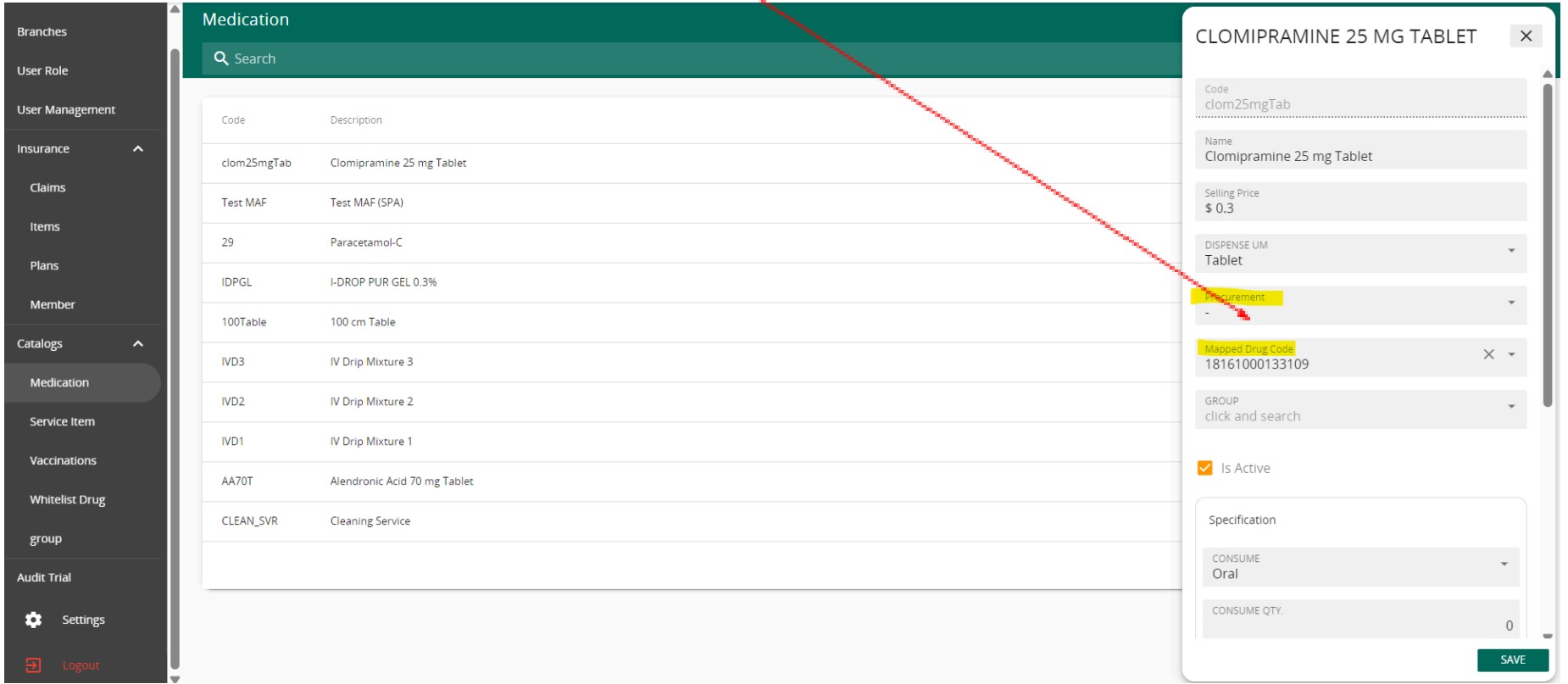
2. Setup the whitelisted drug items that clinic would be prescribing in clinic’s Medication list as usual (e.g. Clomipramine 25 mg Tablet)

For drug items setup for ALPS delivery, please make sure the dispense UM follows the whitelisted drug UM.

a. If the medicine is procured and dispensed from the clinic, please choose ‘-‘ as ‘Procurement’ (default setting). Then Search and select a correct SDD drug item to map to it. Specify the medication’s consume method, UM…etc as usual. 

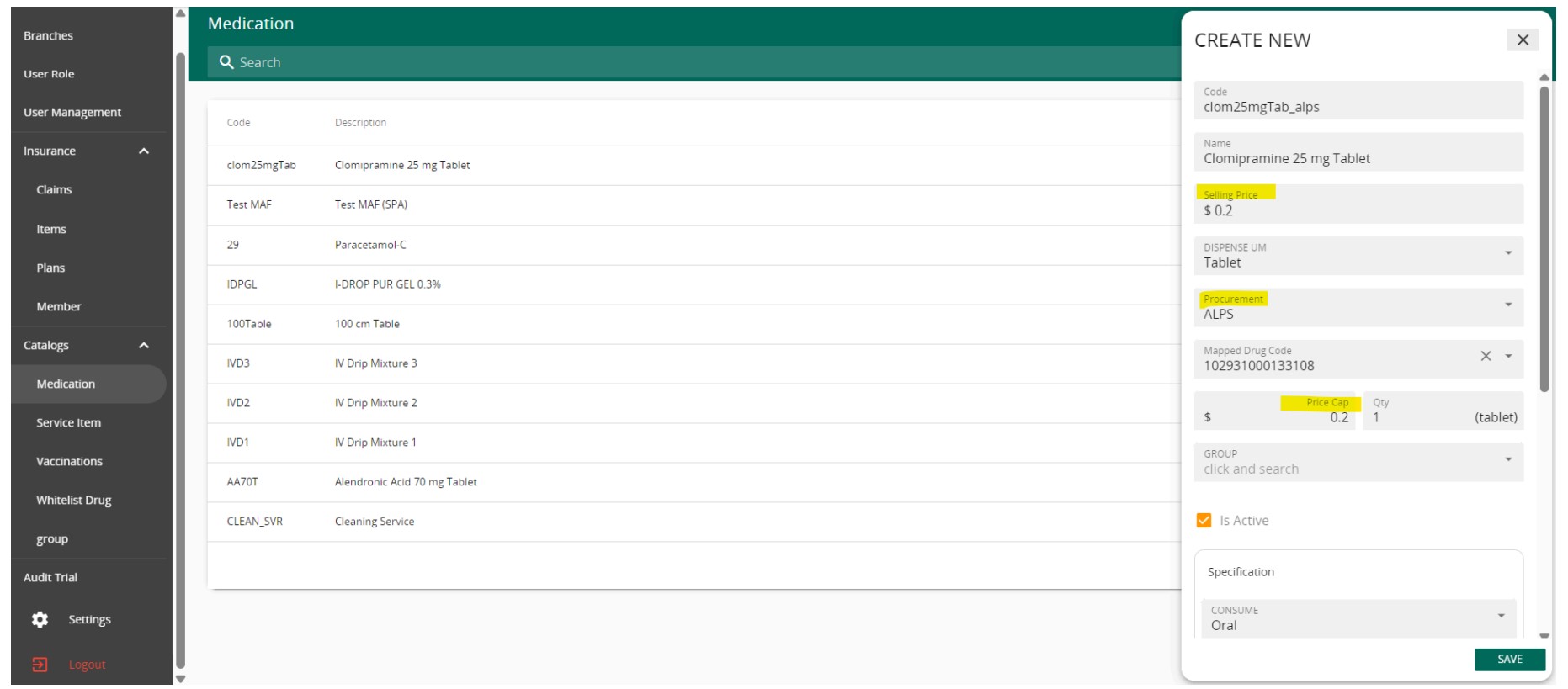
b. If clinic does not carry the whitelisted drug item and would like to utilize ALPS delivery service, please choose ‘ALPS’ as ‘Procurement’.

Please note that:

  1. Whitelisted drug procured from ALPS has set price cap. So clinic’s selling price cannot be higher than the price cap. 
  2. ALPS whitelisted drug is brand specific, so the mapped SDD drug code can be different from private procurements. 

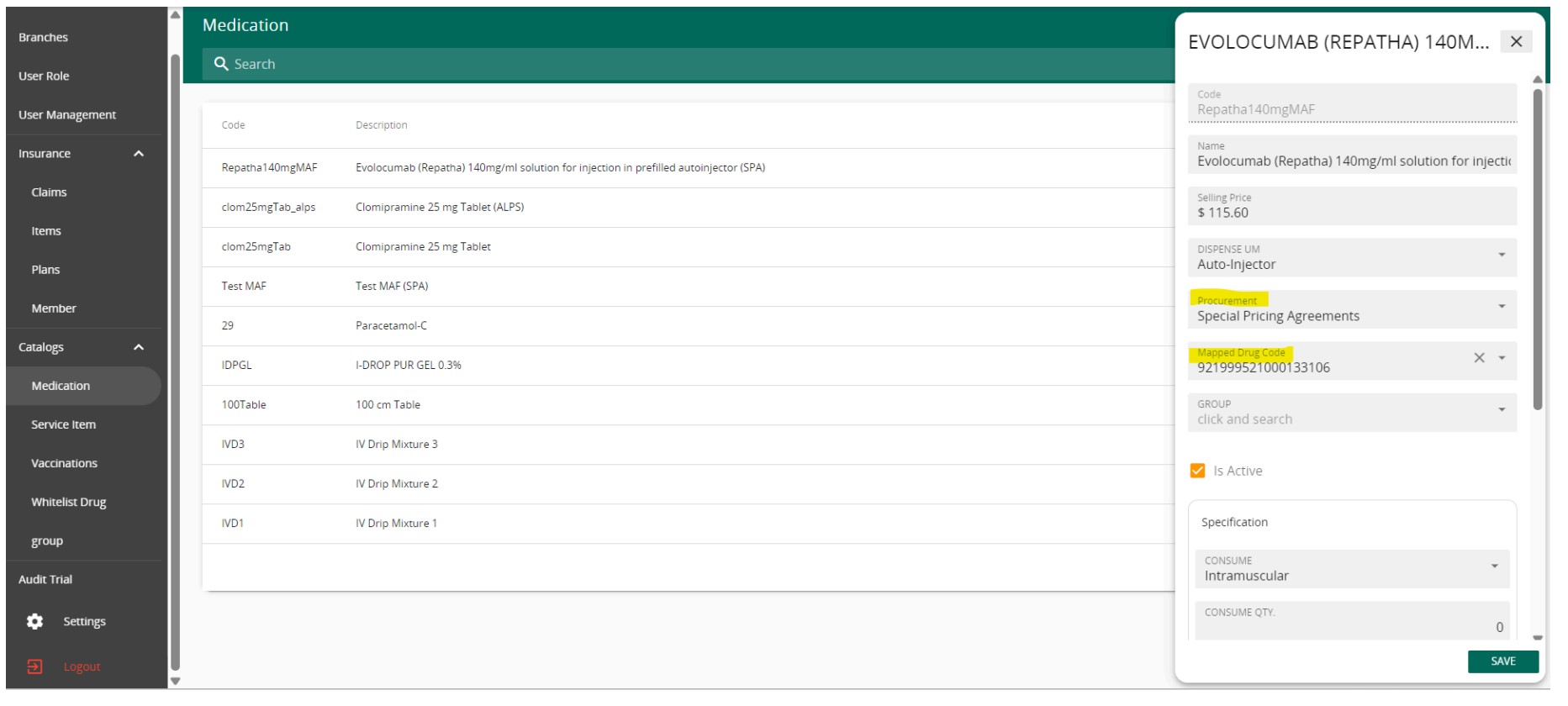
3. For items under Special Price Arrangements (e.g. MAF drug items), please choose ‘Special Price Arrangement’ as Procurement and map to SDD drug code as usual.

Prescribe Whitelist Drugs and Arrange for ALPS Delivery

  1. Check and Update Patient’s Subsidy Status 

Note: It is recommended to do this for both newly registered or existing patients who are having CHAS cards or HSG enrolled or both. This will refresh patient’s most current subsidy info and claim balances from MHCP. 


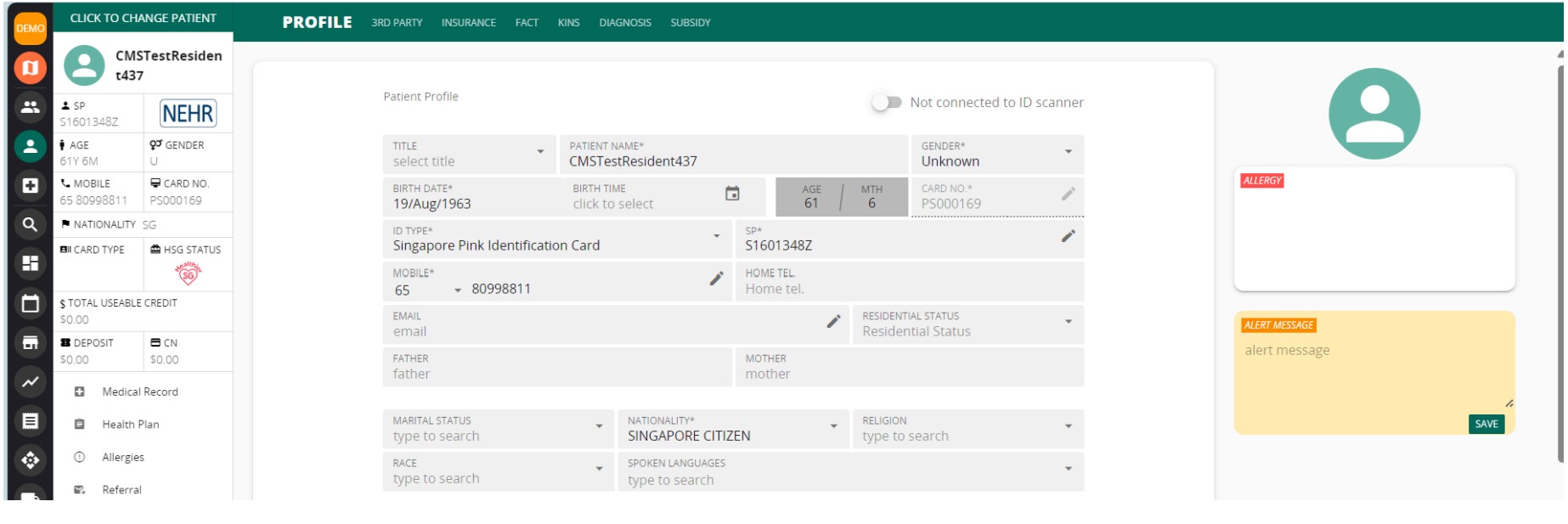
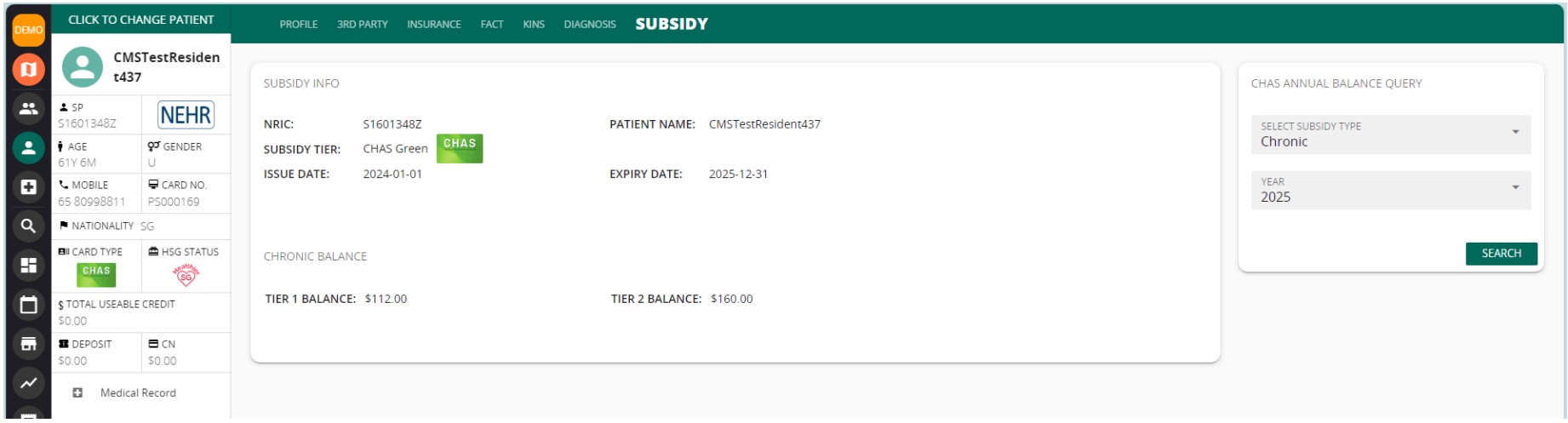
Go to Patient’s Profile, make sure patient’s demographic data is accurate

Go to Subsidy tab, select a type you would like to check for the patient, click Search

Vanda will retrieve patient’s latest subsidy information from MHCP and display

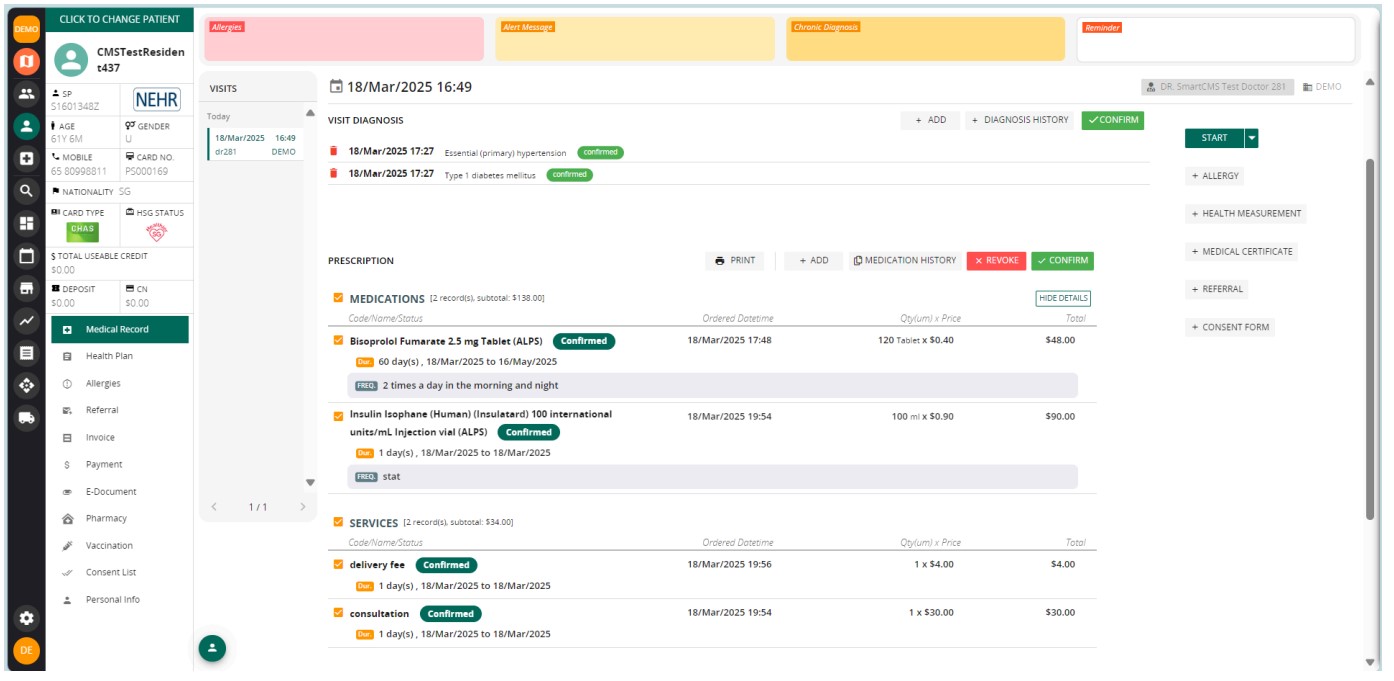
2. Medical Consultation and Prescription with Whitelisted Drug

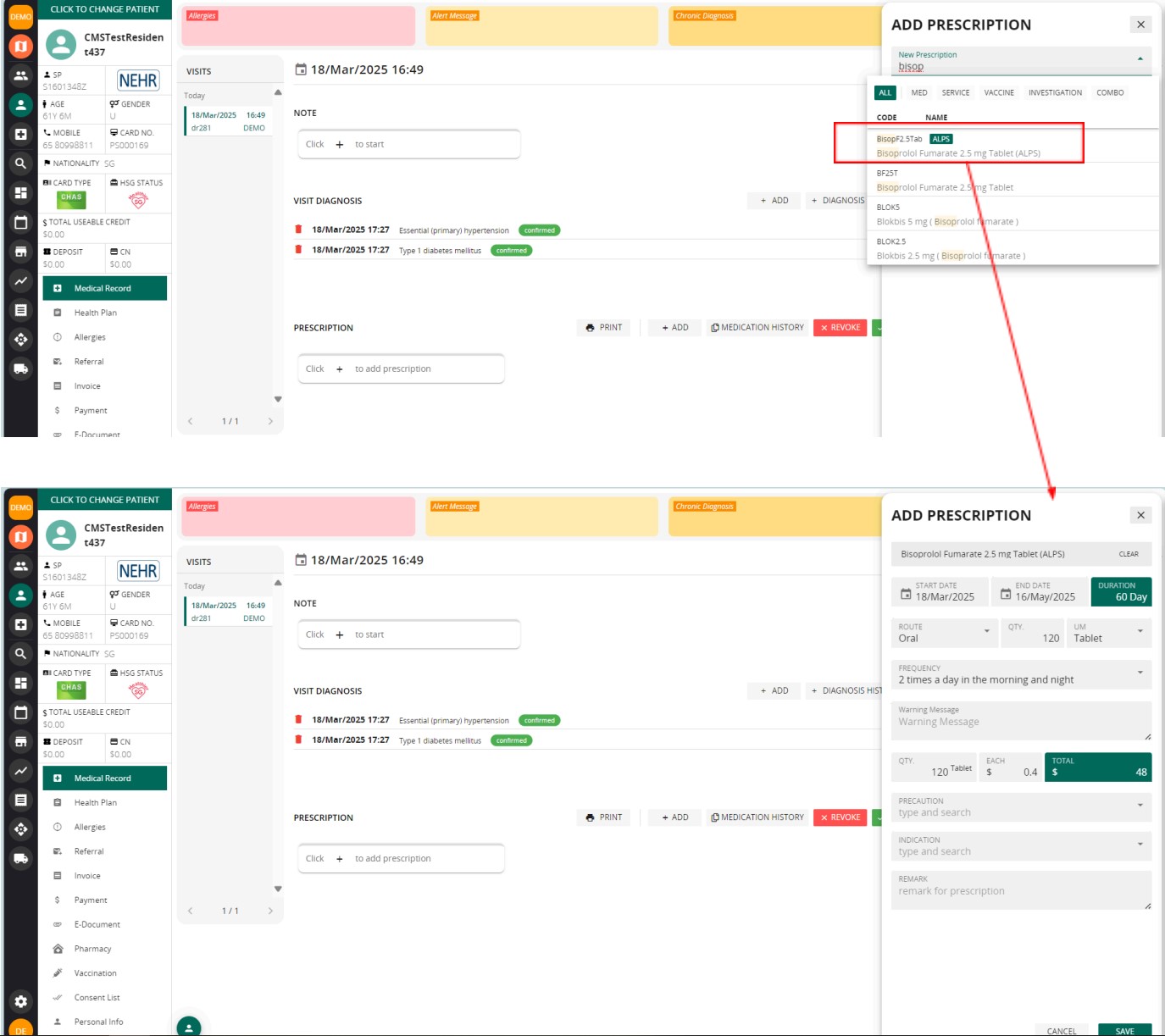
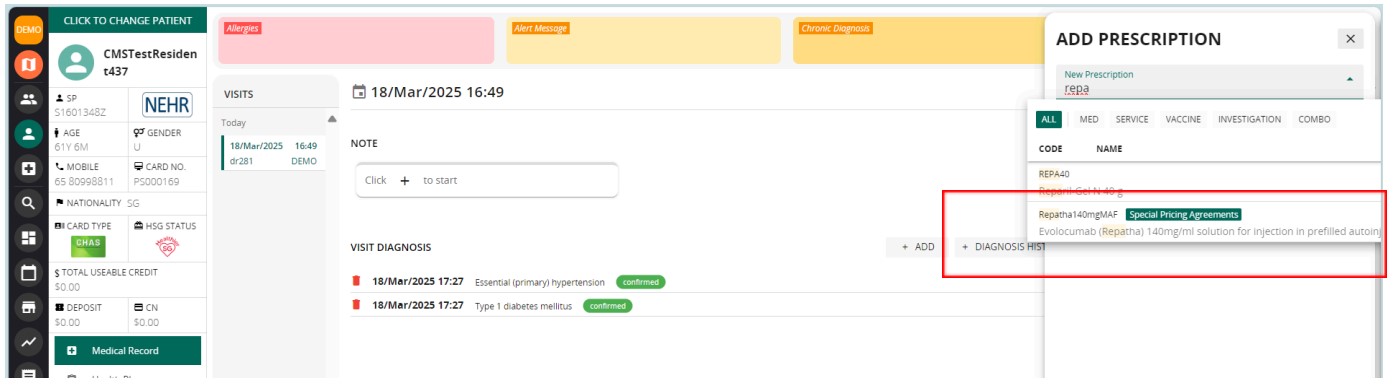
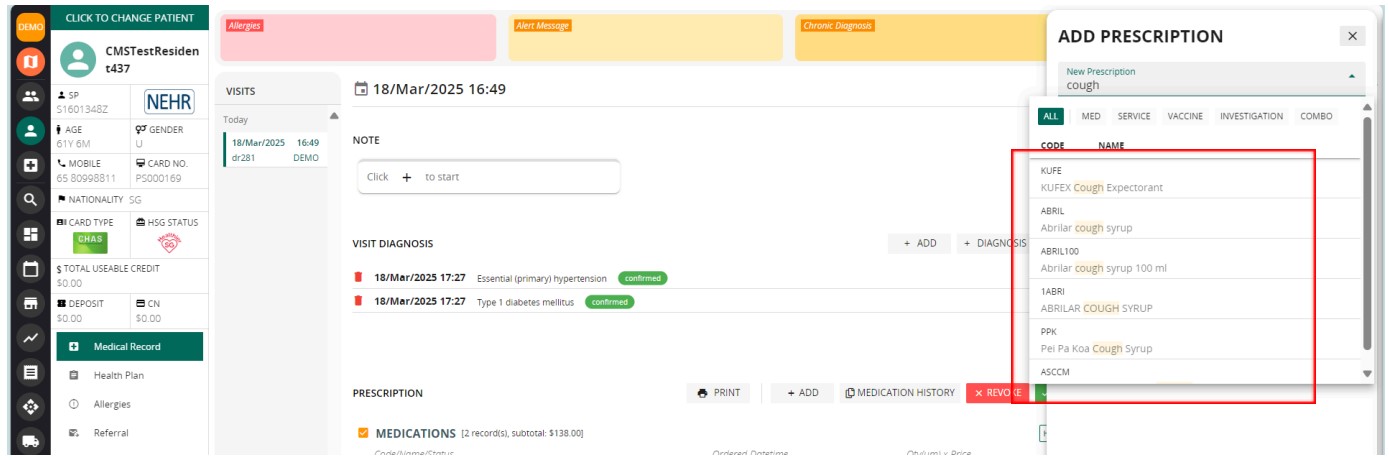
a. When prescribing medication procured from ALPS, look out for ‘ALPS’ indicator behind the medication description

Items under Special Price Arrangement will have indication too

Items not under ALPS nor Special Price Arrangement will not have any indication 

When confirming the prescribed medications, a warning message will show up if ALPS items were detected:

For GST registered clinic, Delivery fee will be cap at ALPS delivery fee before GST

For Non-GST registered clinic, it will be cap at ALPS charged delivery fee with GST (9% GST as of year 2025).

Sample confirmed charges

3. Billing and Payment

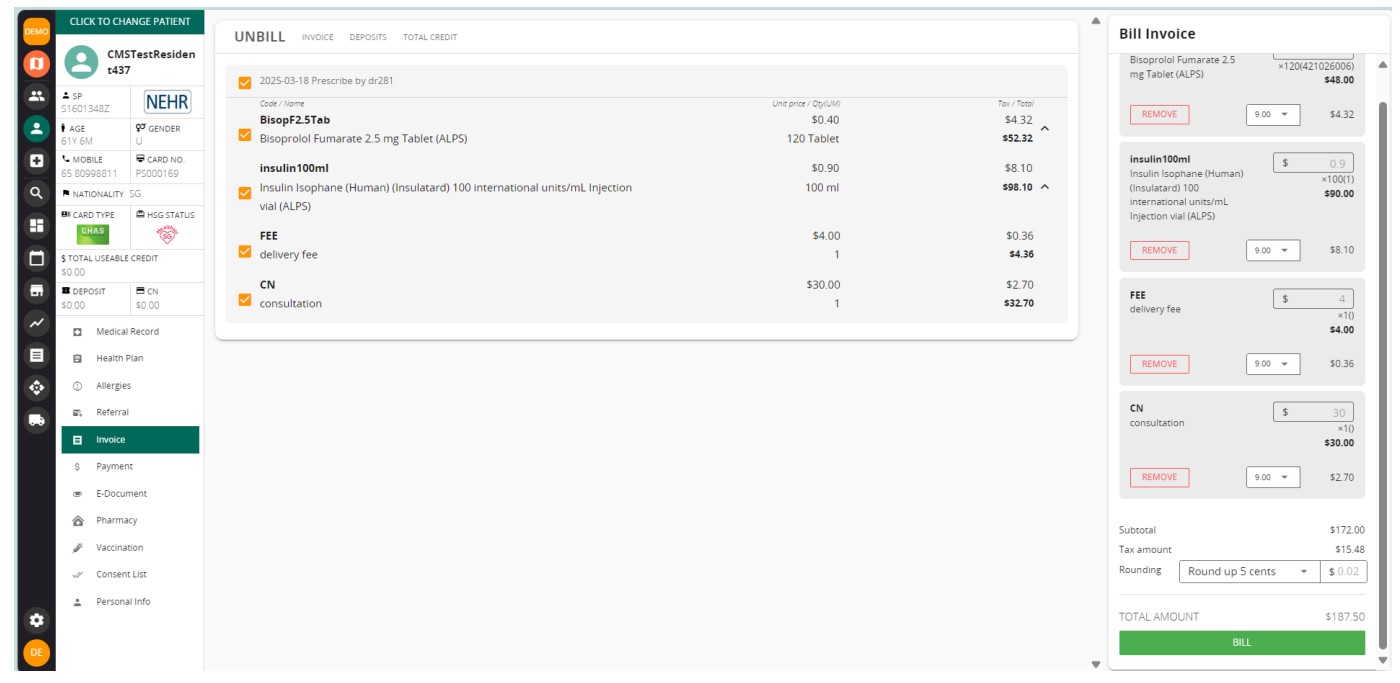
a. Bill the service charges

See billed items in the draft invoice

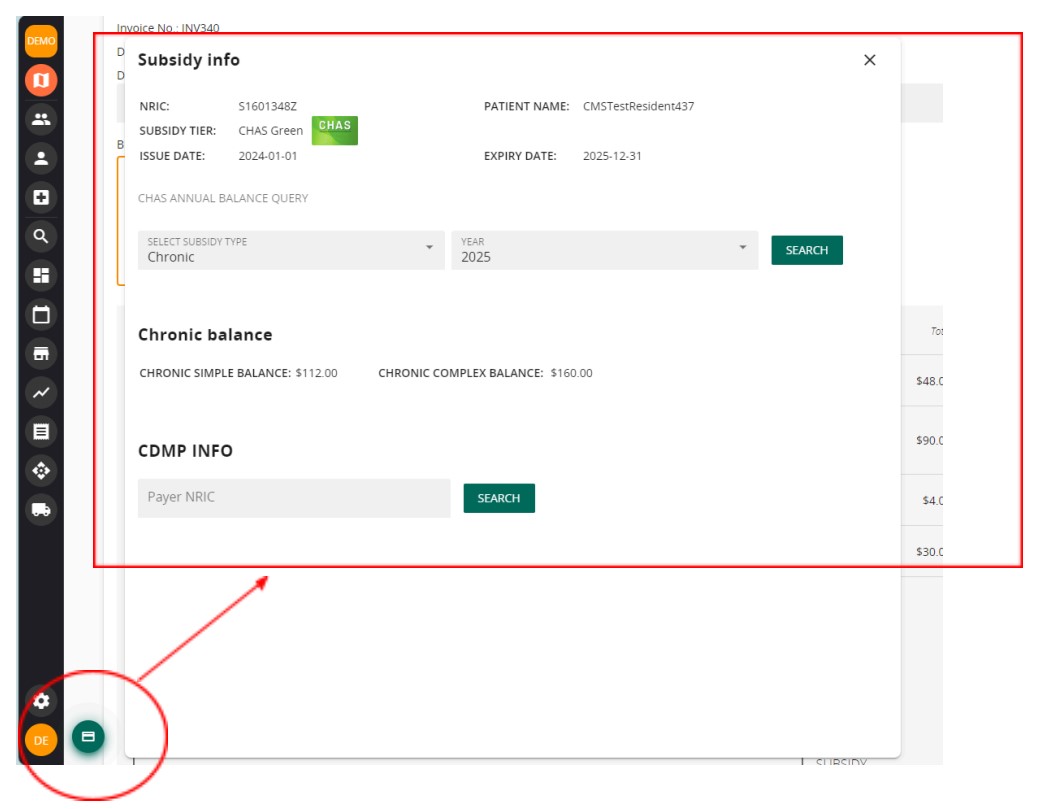
Check patient’s current subsidy info if necessary

Make sure that the patient has sufficient balance for claims. 

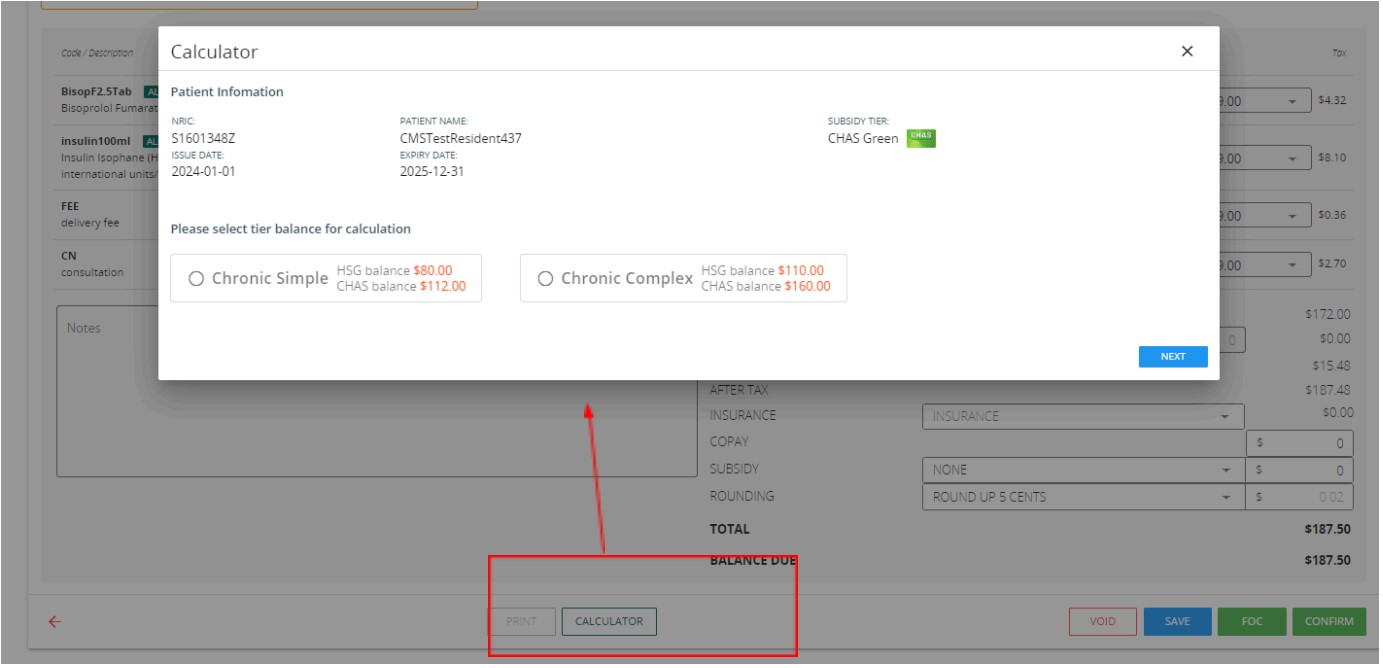
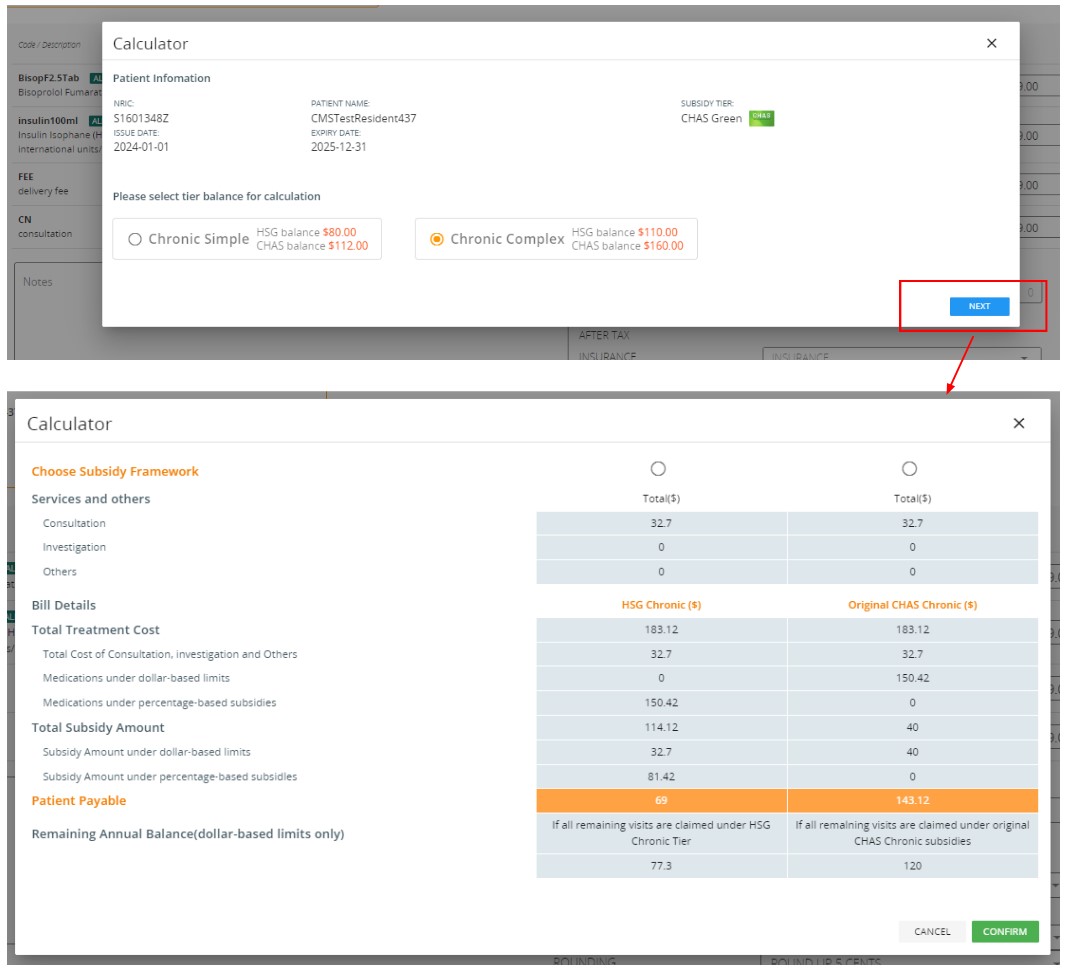
c. Use the whitelisted drug calculator feature to check patient’s claiming options

See possible claim amount under Chronic Simple or Chronic Complex

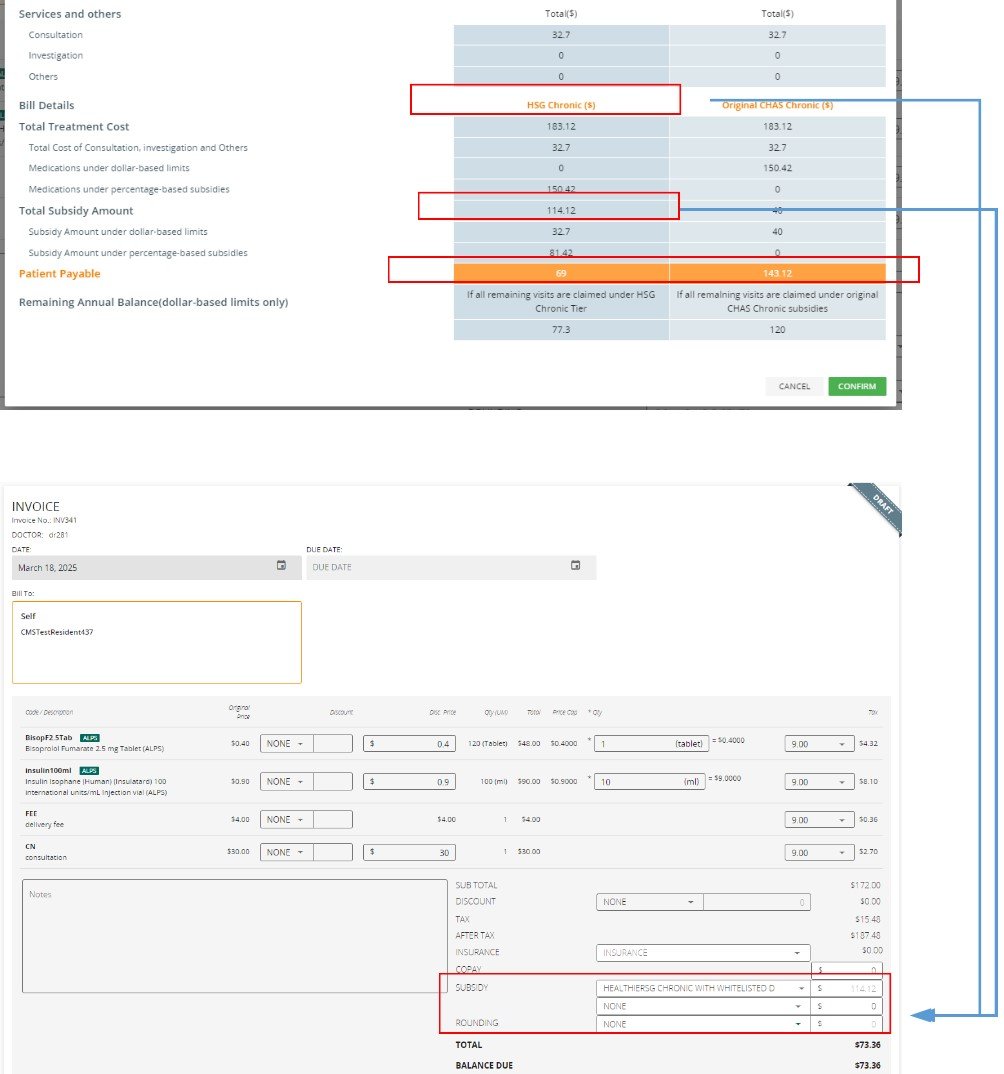
You may compare the claiming options and advise the patient which is the better choice.

Please note that the patient payable is computed and returned from MHCP based on current bill details.

Once selected and confirmed on one of the claim options, the claim type and amount will be automatically populated to the invoice. 

Note: delivery fee cannot be claimed under the subsidy


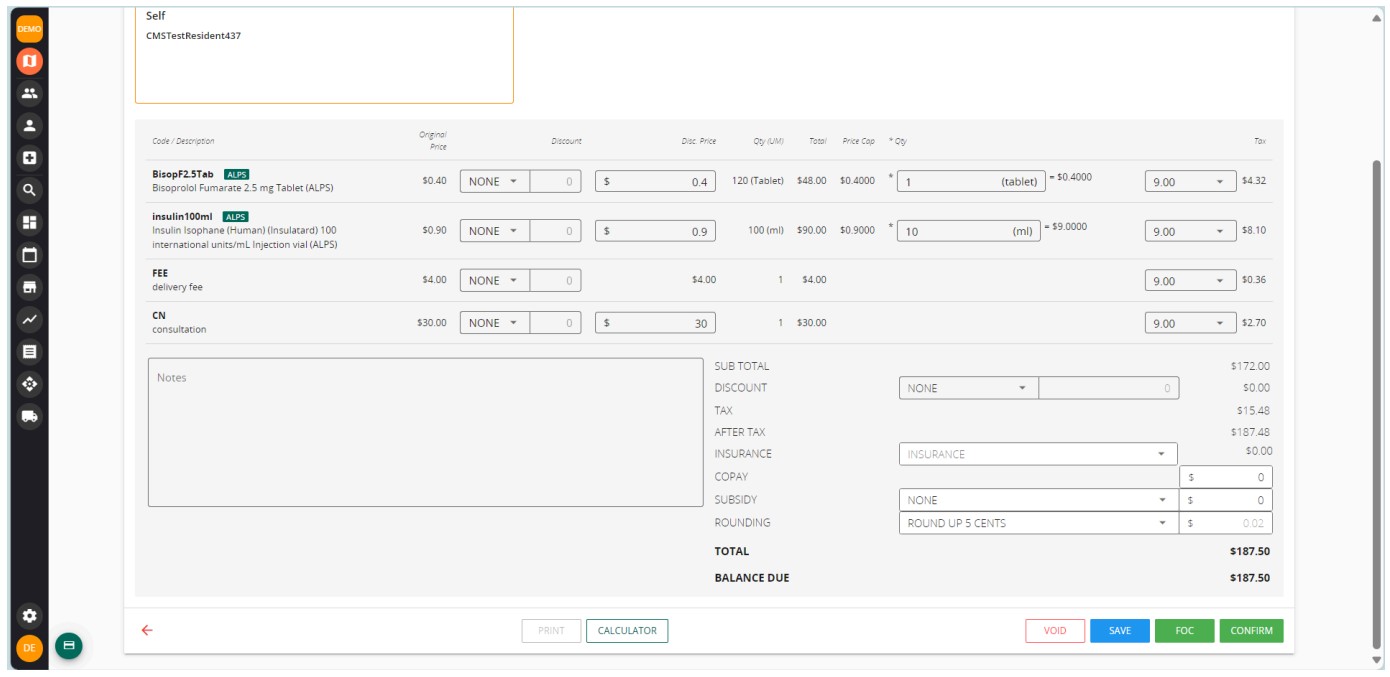
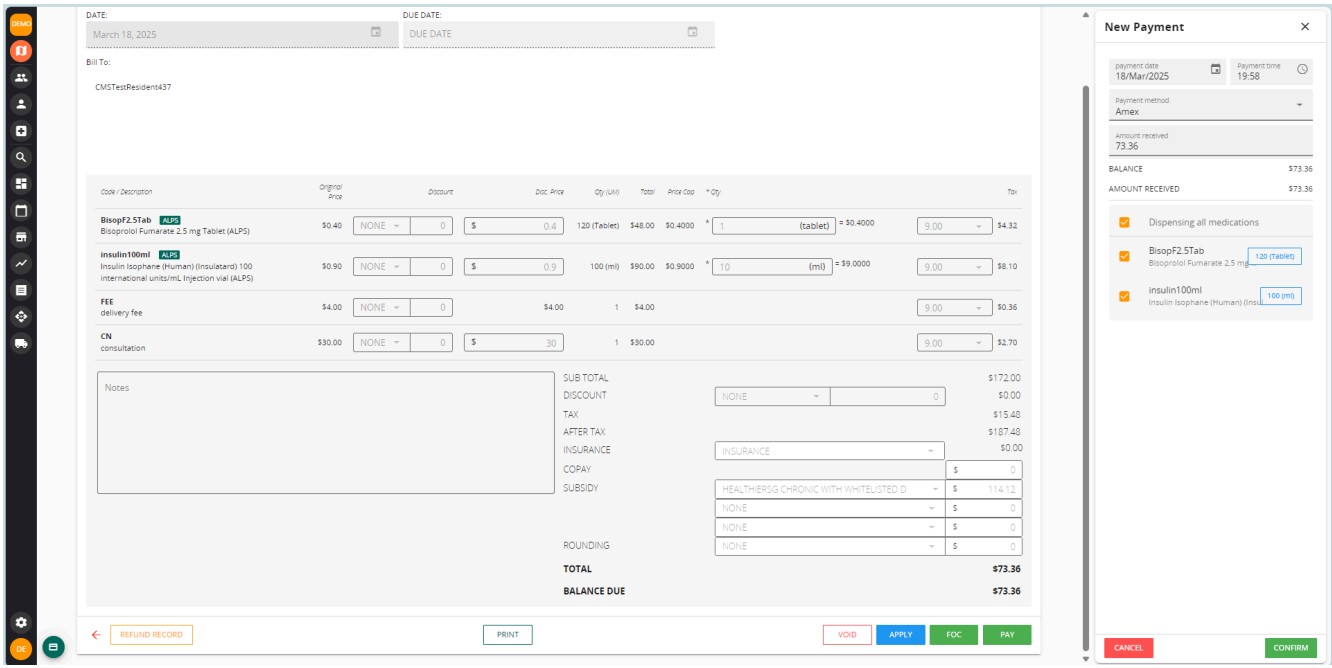
d. Confirm the invoice and settle payment (if any) as usual

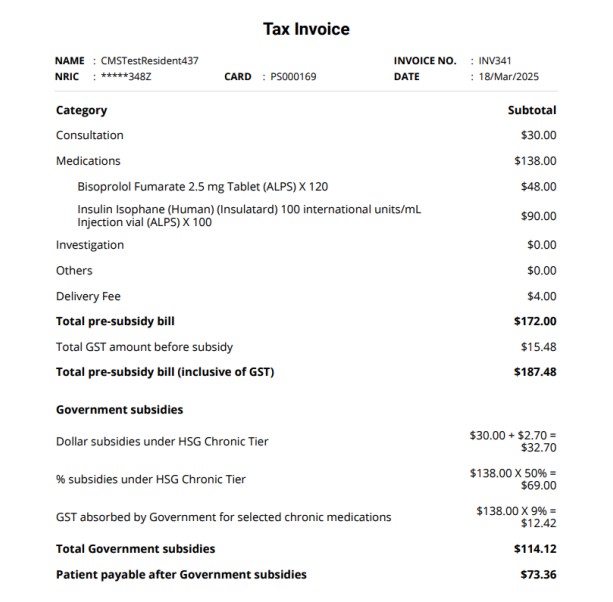
Sample of an invoice with whitelisted drug subsidy:

4. Arrange ALPS Delivery 

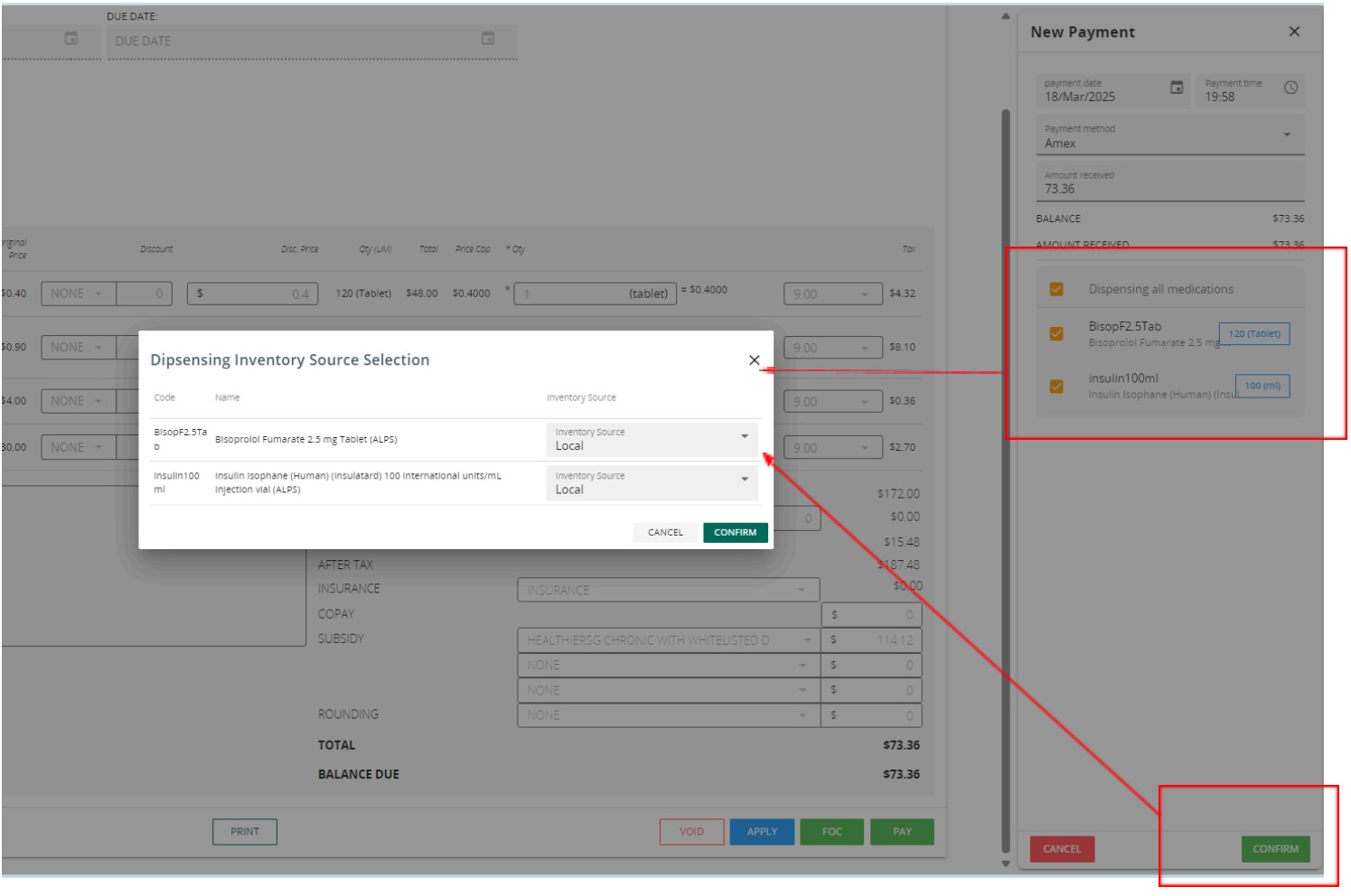
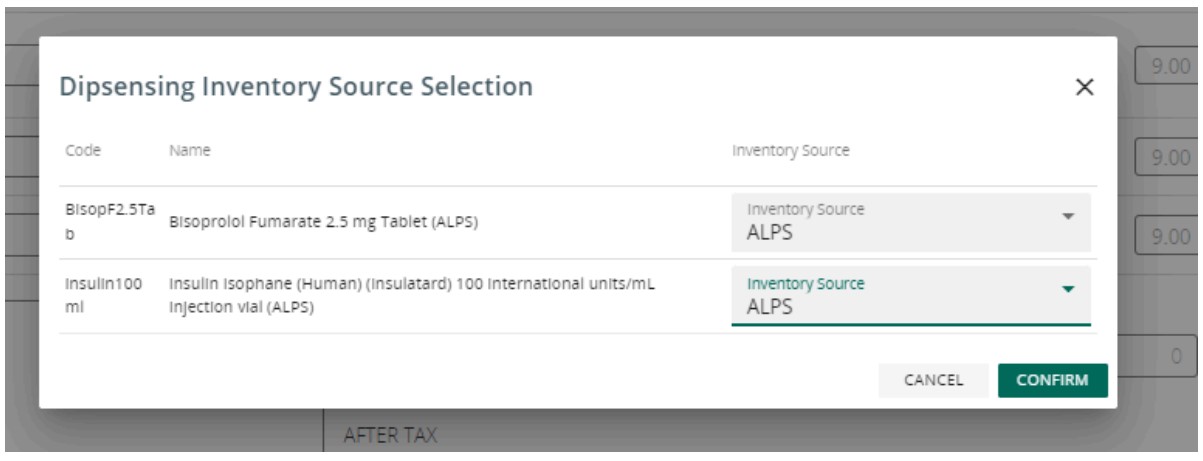
If ‘quick dispense’ option is enabled for your clinic, upon confirming the payment dispense details, you may see the pop up screen to select drug procurement source

Be sure to choose ‘ALPS’ as the procurement source if items are intended to be delivered from ALPS to the patient. 

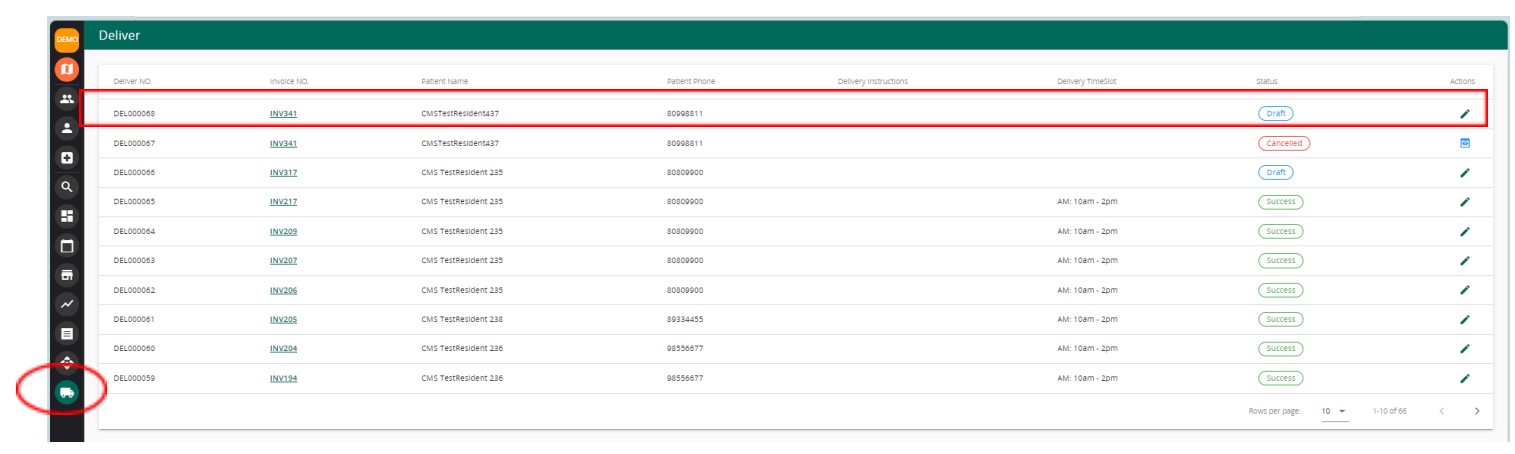
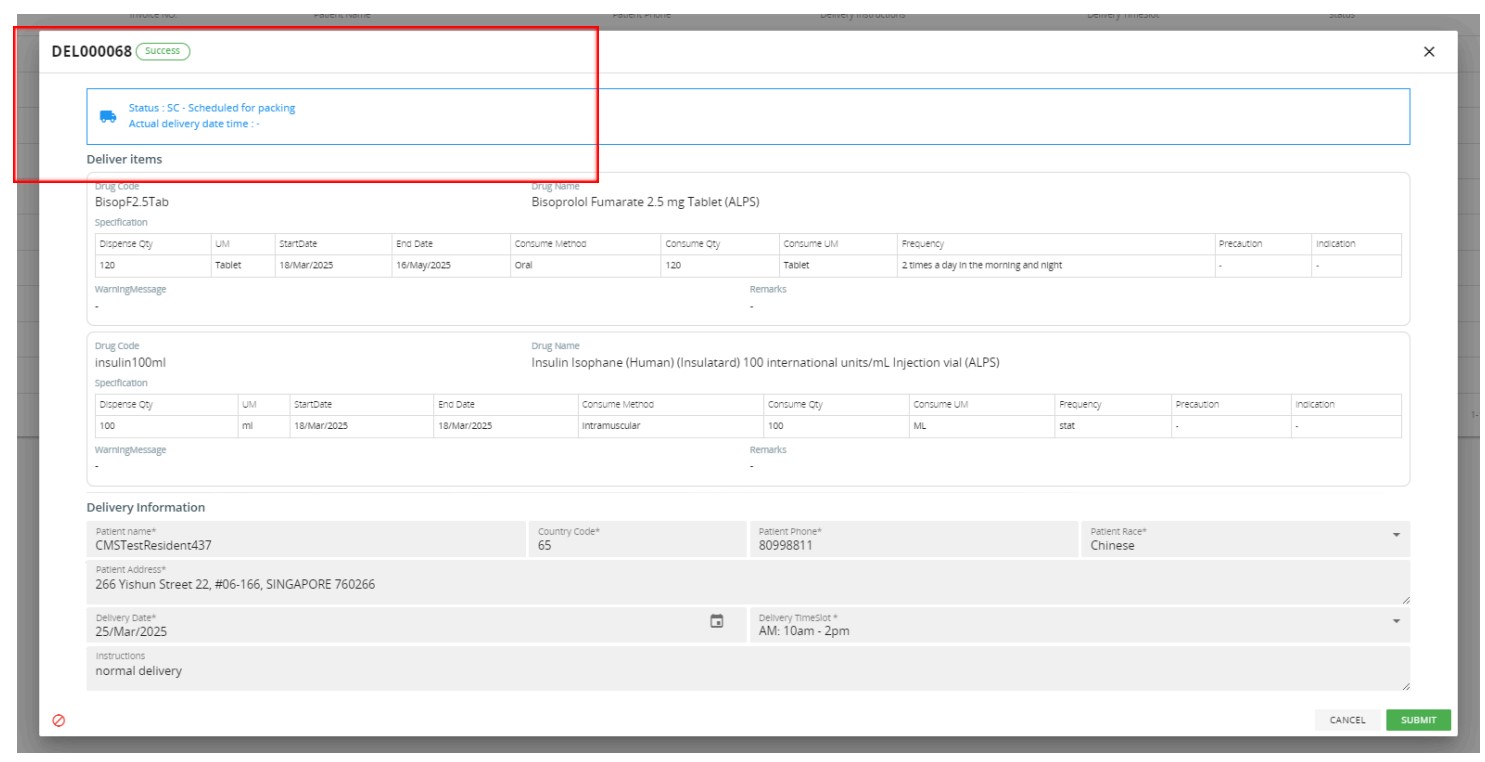
Once confirmed, a draft ALPS delivery order will be created in the ALPS delivery page .

Please review and make sure the prescription details and patient’s details in the draft delivery order are correct.


Please indicate the delivery date/time and instructions before submit the delivery record to ALPS. (Kindly note that ALPS has scheduled working days so the non-working days will be blocked from selection)

Once the delivery details are updated and reviewed, click ‘Submit’ and the it will be submitted to ALPS. 

After a delivery order is submitted, you can always check the order status by opening the order details.

Please note that, if the delivery order status returned ‘Fail’ due to various reason (e.g. patient demographic info error or other issues), you can always click the ‘Fail’ status to see more details, update the information and re-submit the order. 

A successfully ALPS delivery order will eventually obtain a ‘Delivered’ status.

Updated on December 20, 2025

What are your Feelings

  • Happy
  • Normal
  • Sad

Share This Article :

  • Facebook
  • X
  • LinkedIn
  • Pinterest
Healthier SG Care ReportHealth Plan

2 Venture Dr, #24-01 Vision Exchange, Singapore 608526

Quick Links
  • Blog
  • FAQ & Glossary
  • Company
  • Send us email
  • Certification
  • Privacy Policy
  • Terms & Conditions