Skip to content
  • Features

    Vanda Clinic

    • Branch Directory
    • Site Map
    • Queue Management
    • Medical Record

    Vanda Care

    • Vanda Care
    • Feature List

    Vanda Manager

    • Branch Directory
    • Site Map
    • Queue Management
    • Medical Record

    Ophthalmologist

    TCM

    NEHR

    HSG

    Lab

    Prudential MY

  • Resources
    Patient Care Summary

    What Every Healthcare Provider Should Know About the Patient Care Summary (PCS)

    Health Information Bill

    Five Essential Measures for Healthcare Providers to Comply with the Health Information Bill (HIB)

    dementia

    Understanding Dementia

    Medical Practice Valuation

    Medical Practice Valuation Multiples Explained

    See all article
    • Patient Profile Merge & Cancellation
    • Printer troubleshooting
    • Health Plan
    • Onboarding Flow
    • Malaysia’s SST
    • Template Crafting
    • Lab Module Set up
    • NEHR Corppass Context Switch
    • Whiltelisted Drug & ALPS Delivery
    See all knowledge base

    Vanda 12 – A Clinic Management System

    Discover Vanda modules and functions in both Vanda Clinic and Vanda Manager here!

    General & Queue Features

    Clinic users can perform basic account features and queue management features such as patient registration, and more.

    Ophthamologist

    Clinic users can conduct vision tests and examination for the patient.

    See all Videos

    MCO

    Vanda Care

  • Vanda Hub
  • About Us

VandaManager - Tenant Information

1
  • Edit clinic information

VandaManager - Whitelist

1
  • Whitelist Feature

Vanda Manager - Branch Management

4
  • Setup branch settings
  • Create new branch
  • User Management
  • User Role Management

VandaManager - User Role

3
  • Edit user role
  • Create user role
  • Add new user

VandaManager - User Management

4
  • Reset user password
  • Unlock an account
  • Force exit a user
  • Edit user account

Vanda Manager - Catalogs

1
  • Add new catalog item

Vanda Manager - Audit Trail

1
  • Audit Trail Record

Vanda Manager - Settings

21
  • Setup salary feature
  • Setup allergy reaction
  • Add visit purpose
  • Add unit measurement
  • Add religion
  • Add New Indication
  • Add consume method
  • Add queue status
  • Add New Tax
  • Add new frequency
  • Adding new Language
  • Adding New Country & Telephone Code
  • Add New Race
  • Add New Gender
  • Add Marital Status
  • Add Medication’s Precaution Message
  • Add New Diagnosis
  • Add New Occupation
  • Add New Identification Type
  • Add New Institution
  • Malaysia’s SST

VandaClinic - Setting

21
  • Setup visit purpose
  • Edit queue status color
  • Add new insurance company
  • Set up Queue Status
  • Add new payment method
  • Add new vaccination plan
  • Setup tax rate
  • Add / Change Document Reference Number
  • Add a new Combined Medication
  • Setup print server
  • Duplicate Insurance Details
  • Set Tax as Default for all invoices
  • Add new insurance policy for all medication or individual medication
  • Setting up Doctor & Service rooms
  • VandaClinic – Dictionary
  • Operation Template
  • Update item’s selling price
  • Add new Subsidy
  • Craft a New Consent Form
  • Adding new Label templates
  • Printer troubleshooting

VandaClinic - Administrative

4
  • Changing Branches
  • Vanda login
  • Vanda logout
  • Change login password

VandaClinic - Queue

12
  • Nric error
  • How to corrct Patient’s NRIC when add patient to Queue
  • Change patient queue sequence
  • Consult in, out and Recall patient
  • Search for Patient in queue
  • Open Queue Display
  • Add Existing Patient to Queue
  • Add new patient to queue
  • View Invoice, Payment, Patient Detail and Patient Label from queue
  • Queue Category
  • Print Queue Label
  • Backdating queue

VandaClinic - Medical Record

11
  • Create medical certificate
  • Prescribe a Vaccination Dose
  • Add Referral Information
  • Add Allergy to Patient
  • E-documents
  • Add Vaccination Plan
  • Add Health Measurement Details for Patient
  • Repeat Medicine / Service
  • Remove vaccination dose
  • Create medical record
  • Add Consent form

VandaClinic - Operation Module

3
  • Add Operation
  • Complete Operation
  • Add new anaesthetic and operation record

VandaClinic - Billing & Payment

11
  • View all Invoice
  • Void payment
  • Bill and create invoice
  • Make invoice free of charge
  • Continue partial payment
  • Backdate invoice
  • Make partial payment for invoice
  • Subsidy in Invoice
  • Add discount to specific item in voice
  • Dispense Medication Later
  • Void paid invoice

VandaClinic - Credit Note and Deposit

15
  • Check a patient’s credit and deposit
  • How to print a deposit receipt
  • Check deposit records
  • Refund Deposits
  • Void Refund
  • Generate credit note from goods return
  • Add credit note through confirmed invoices
  • Adding a Deposit
  • Check Refund Record
  • View credit note apply records method one
  • View credit note apply records method two
  • Print a refund
  • Apply credit note method two
  • Apply credit note method one
  • Delete Deposits

VandaClinic - Pharmacy

4
  • Dispense Medication Item
  • Record Goods Return for Paid Invoices
  • How to see dispense history
  • View dispensary record

VandaClinic - Patient Management

6
  • Allergies and Alert Message
  • Create Fact in Patient Info
  • Edit an existing patient
  • Create new patient
  • Create patient kins
  • Check patient subsidy details

VandaClinic - Search

7
  • Print Patient Label using the search module
  • Search for Patient info using the search module
  • Search for Patient health measurements or facts using the search module
  • Add Patient to Queue using the search module
  • Search for medical certificate by patient using the search module
  • Search for invoice by status using the search module
  • Search for invoice by date using the search module

VandaClinic - Appointment

3
  • Recording Appointments
  • View One Doctor Appointments
  • Change Appointment View

VandaClinic - Dashboard

2
  • Go to queue by dashboard page
  • Filter payment methods used on a specific date

VandaClinic - Purchase

2
  • Confirm several purchase invoice at once
  • Record Purchase

VandaClinic - Inventory

14
  • Add new item for inventory
  • Check items with low stock
  • Setup Item UPC for dispense
  • Setup item UPC for purchase order
  • Setup minimum stock for item
  • Movement records
  • Deactivate item
  • Setup default supplier
  • Update stocks from dispensing done before stock update
  • Setup item UPC
  • Inventory adjustment for unit cost
  • Adjust item quantity
  • Add new supplier
  • Add new Inventory Items

VandaClinic - Requisition

4
  • What is requisition module
  • Check requisition drafts
  • Set item bonus
  • Using the requisition module

VandaClinic - Delivery Order

3
  • Record Stock In
  • Record Stock In
  • Void Delivery Order

VandaClinic - Insurance & Claim

5
  • Set insurance plan for patient
  • Duplicate items from existing plan
  • Apply insurance plan for patient in invoice
  • Generate Claim
  • Create insurance plan

NEHR requirements

4
  • HCI Code
  • User MCR Code
  • NEHR Corppass Context Switch
  • Patient Profile Merge & Cancellation

VandaClinic - Healthier SG

3
  • Healthier SG Care Report
  • Whiltelisted Drug & ALPS Delivery
  • Health Plan

VandaClinic - Report

3
  • Salary Feature Report
  • Add report to favourites
  • View reports

Getting started

1
  • Getting Started

Lab Module

1
  • Lab Module Set up

VandaCare

2
  • Template Crafting
  • Onboarding Flow
View Categories
  • Home
  • Knowledge Base
  • Lab Module
  • Lab Module Set up

The objective of this guide is to assist our users in setting up the lab items, profiles & packages in Vanda Manager.

To try out along with the guide, please login to your Vanda Manager site.

Lab Items

To set up lab items:
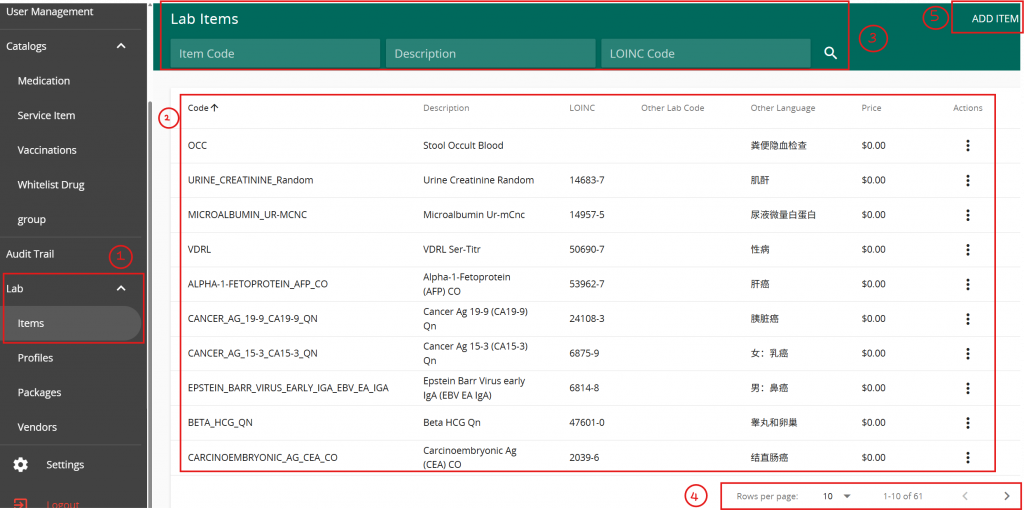
  1. Click on “Lab Items” in the navigation menu on the left of your screen
  2. A list of existing Lab Items will be displayed
  3. There are several filters on the top of the page to search for specific lab items
  4. Change the no. rows per page on the bottom of the page to view more items
  5.  Add new item on the top right of the page

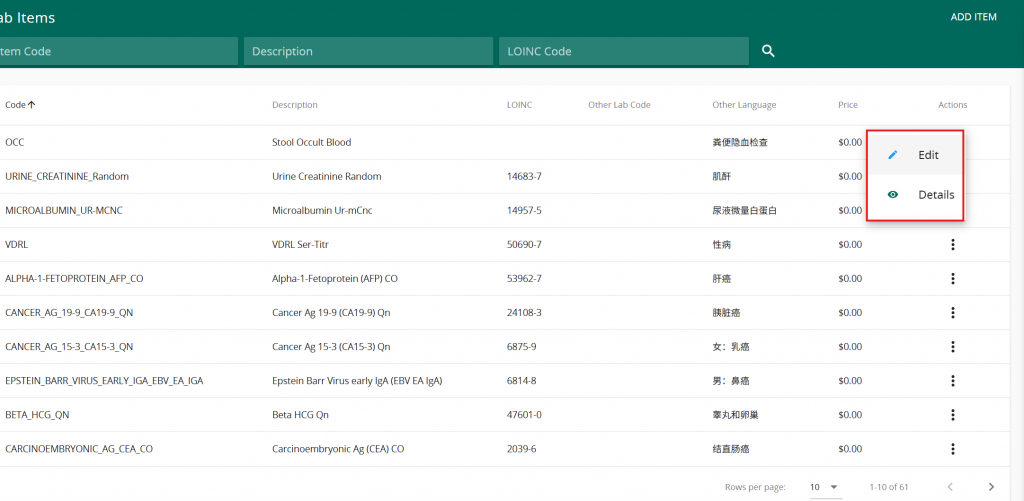
On the Lab Item List, click on the 3 vertical dots to edit the item information or to add item reference information.
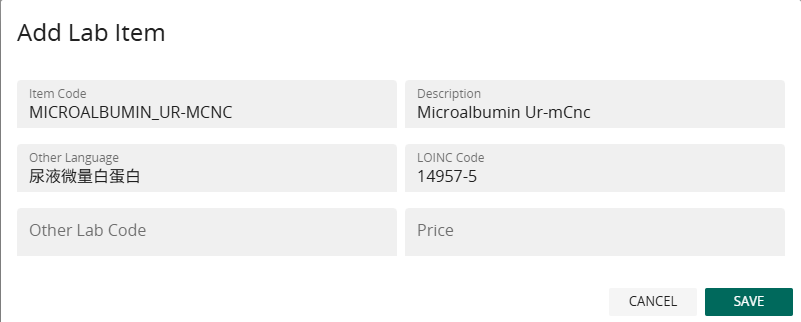
Adding or editing an item will allow users to dictate the following information:
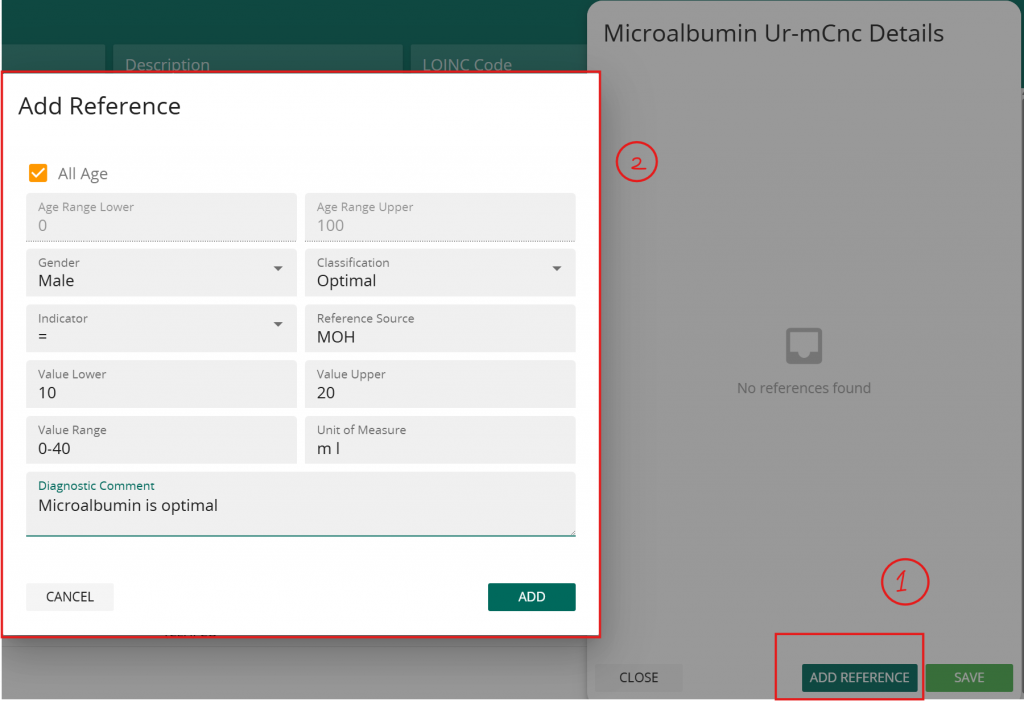
Users can also add reference values for the items by clicking on the “details” button followed by:

  1. Click “add reference”
  2. Fill in the reference information
  3. Save

Lab Profile

To Set up Lab Profiles:

First, ensure that the Vendor information are set up by:
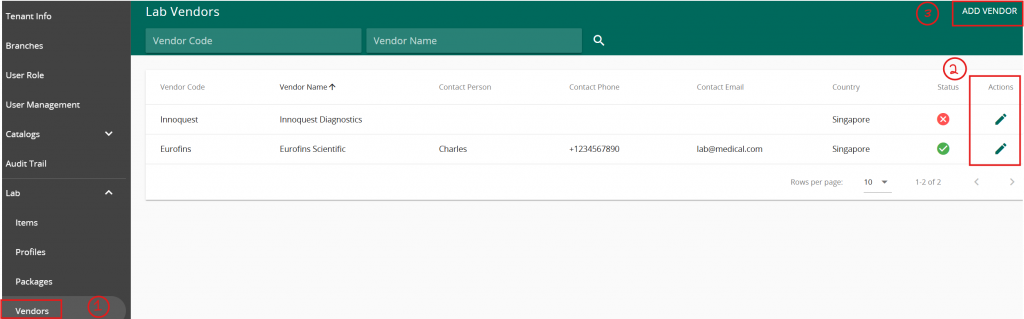
  1.  clicking on “Vendor” under Lab module. A list of existing vendor will appear. User may utilise the filters on the top of the web page to search for a specific vendor. 
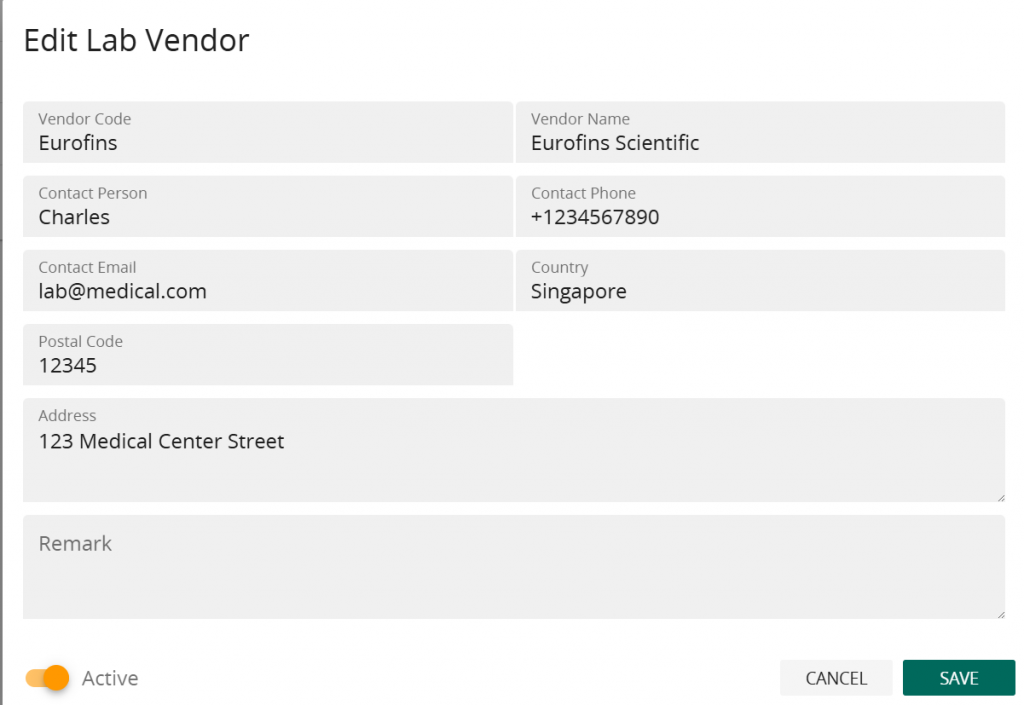
  2. The action button allow users to edit the vendor information. The following screen showcases the vendor details that can be added/edited.
  3. Click on “add Vendor” on the top right of the page to add a new vendor.
 

Next,
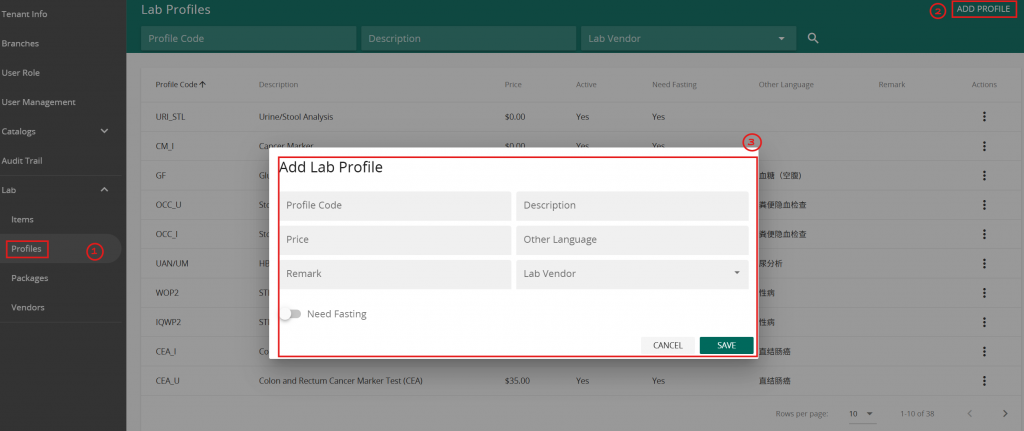
  1. Click on “Profiles” under Lab. Similar to Items, the page includes a list of the profiles, profile list filters on the top of the page and an item per page adjustment feature on the bottom of the page.
  2. Click on add profile on the top right of the page to add a new profile item.
  3. Adding or editing lab profile allow users to dictate the information in the above image.

Users can edit the profile information and setup the items relevant to the profile through the action button
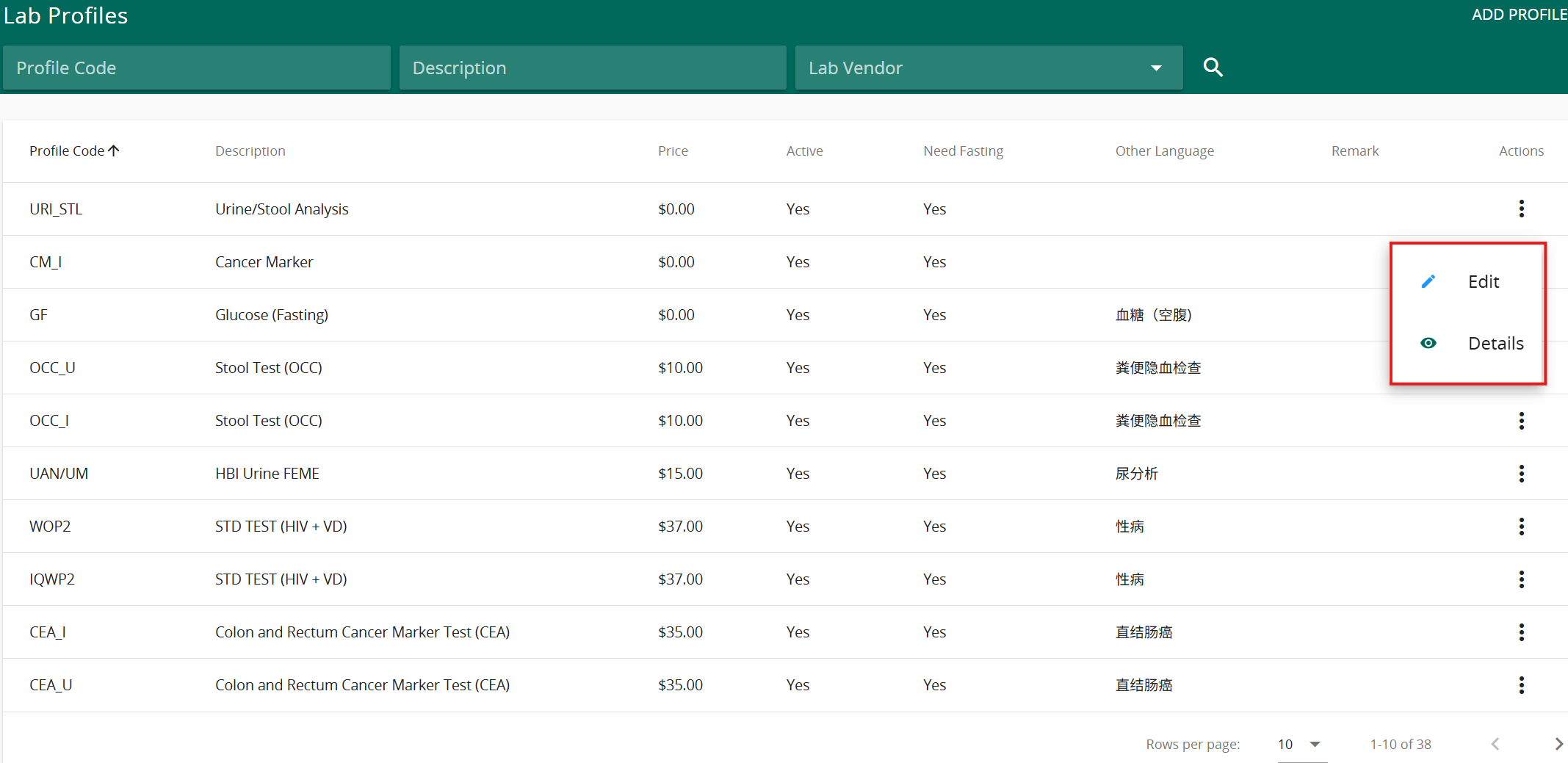
To setup items relevant to the profile, click on “details” . A list of items within the profile will be displayed. User can conduct the following action to add items to the profile:
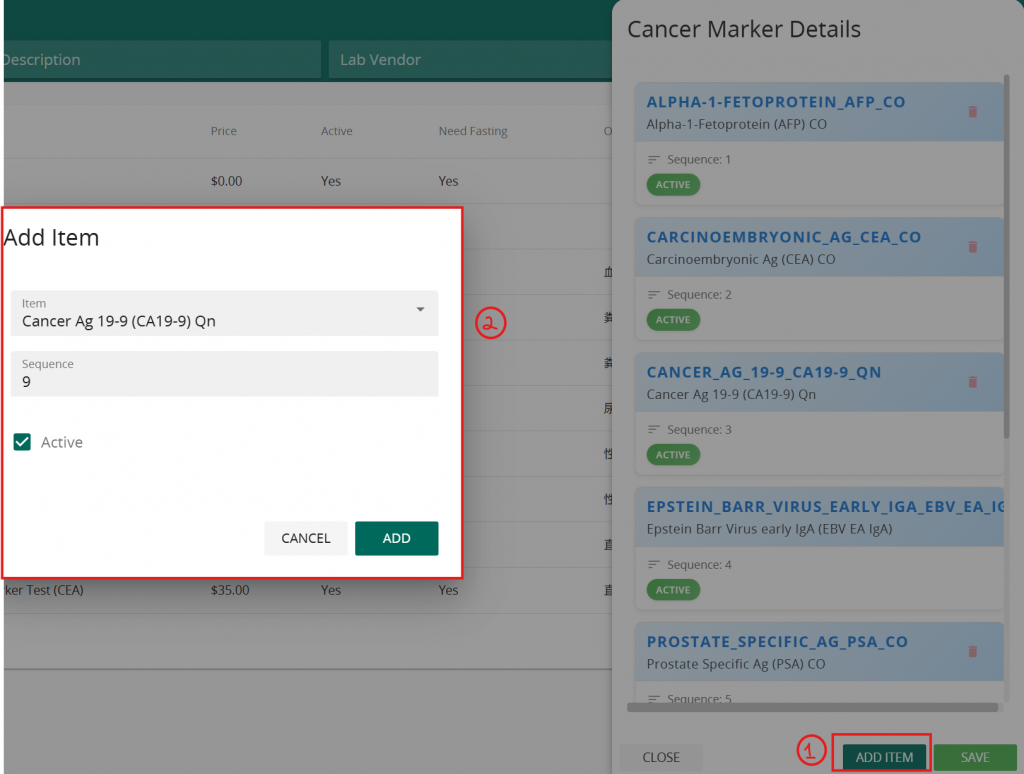
  1. Click on “add item”
  2. Search for the lab item using the item description or first 3 letter of the item code. User can also set the sequence of the lab items along with the item activity status within the profile.
  3. Click “add” after step 2 is completed followed by “save” to complete the lab profile setup.

Lab Package

To set up Lab Packages:
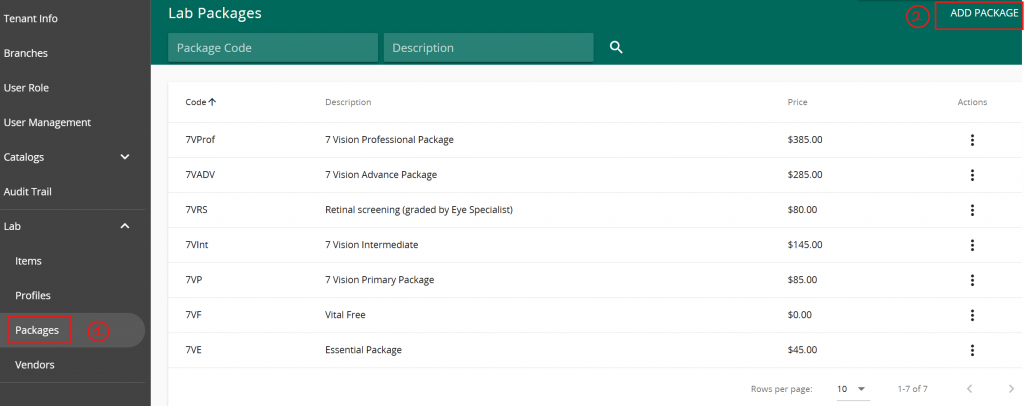
  1. Click on “Packages” under Lab Module. The page design is similar to items & profiles, displaying a list of packages with filters on the top of the page and items per page feature on the bottom of the page
  2. Click on “Add Packages” on the top right of the page to add a new lab package. Fill in the information in the image below followed by pressing save to create a lab package

The action button allows user to edit the package information by clicking on “edit” along with setting up the profiles included in the package  by clicking on “details”
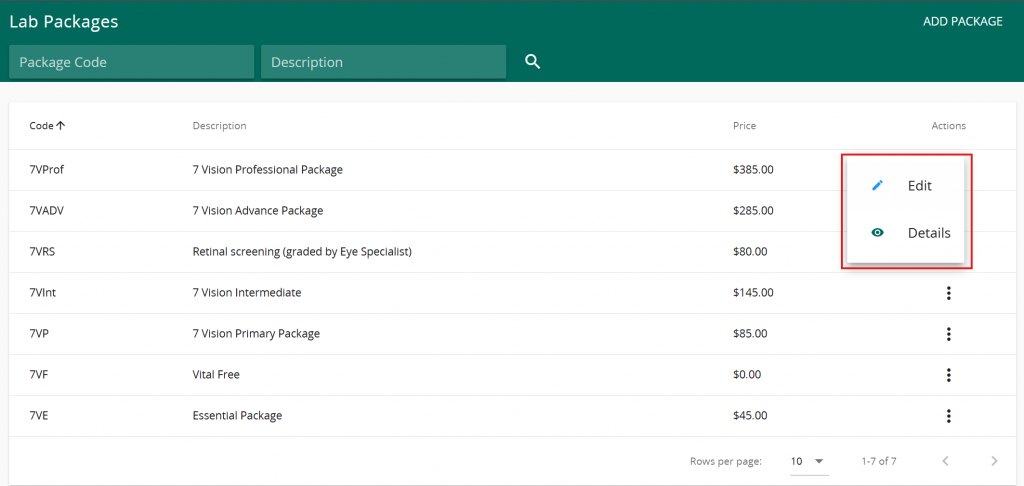
After clicking details, user will be able to view a list of profiles already attached to the packages.

User can:
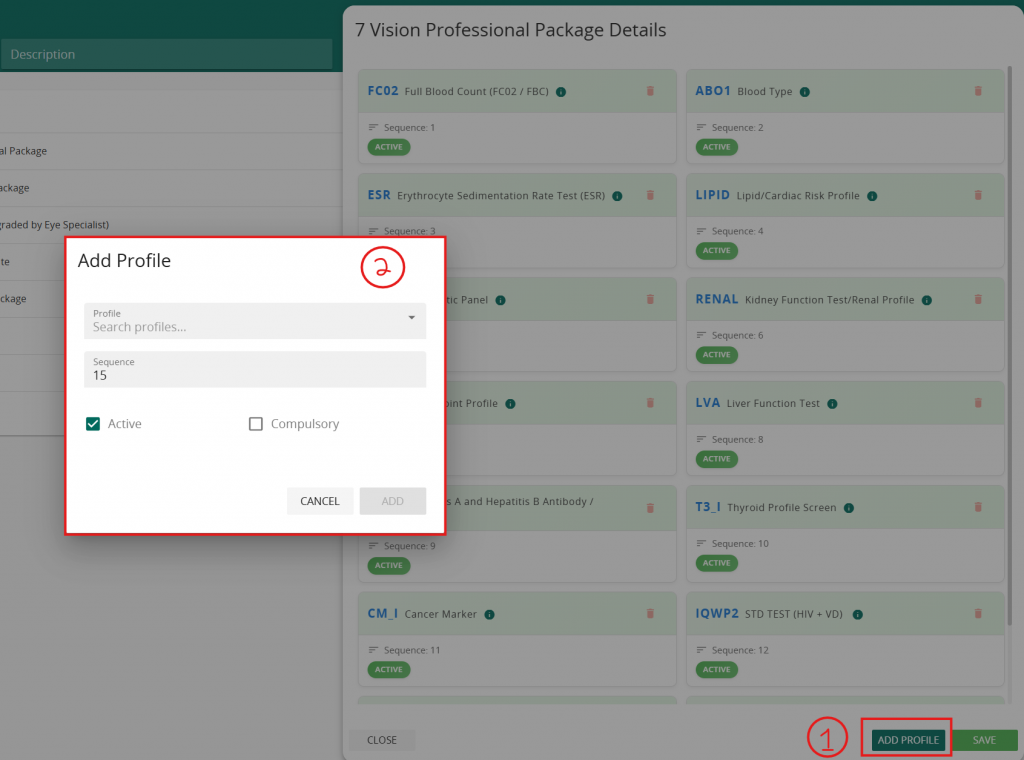
1. Click on “add profile” to add a  new profile to the package. 

2. Search for the relevant profile, adjust the sequence if needed followed by setting the profile active status and compulsory status. Once the profile are selected and managed, press “add” followed by save to complete the lab package set up.

Updated on December 20, 2025

What are your Feelings

  • Happy
  • Normal
  • Sad

Share This Article :

  • Facebook
  • X
  • LinkedIn
  • Pinterest
Lab Module Set upLab Module Set up

2 Venture Dr, #24-01 Vision Exchange, Singapore 608526

Quick Links
  • Blog
  • FAQ & Glossary
  • Company
  • Send us email
  • Certification
  • Privacy Policy
  • Terms & Conditions